Sunday, August 28, 2011

How to Download MP3 from Youtube Videos

Are you tired of finding Mp3 files of your choice? Do you want to download Mp3 music from youtube video without using any  converter? Then this post would helpyou download the mp3 file you want.


The following are simple steps in downloading;


1.  Go to Youtube and search a video you want to convert/extract to Mp3


2.  Copy the URL of the video
       Example: http://www.youtube.com/watch?v=PH658Oz6-zg


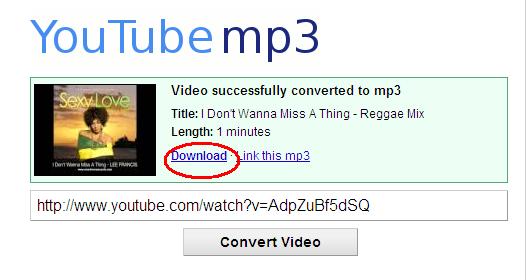
3.  Go to Youtube-mp3.org and paste the URL that you've copied and press Convert Video
     Wait until video processing is done


4.  Now Press Download - The file will now be download but instead of a video file it now be in Mp3 format


5.  Enjoy - For Questions, just post it here - Thanks.

Saturday, August 27, 2011

How to Ping - Stabilize your internet connection

One time I've noticed my dashboard wireless connection is in HSDPA connection and experienced a very good stable connection but most of the time I only got 3G which reflects slow data transfer. I observed that my dashboard will turn HSDPA when I am browsing and downloading, so I came up with a conclusion that my dashboard prioritize HSPDA every time I send data.


I want a stable connection, an HSDPA connection to stabilize my browsing and downloading experience. So I need to ping to stabilize my connection.


Tired of unstable internet wireless internet connection and want to experience it to the fullest? The following are easy steps to ping for stable connection.


1.  Click start and navigate Run
          Start> Run
2.  In the Run box type the command: 
          ping google.com -t
3.  It will open the command prompt and you will notice that your dashboard now displays HSDPA.


Ping Stats
Ping Stats

How to FlushDNS

Your Operating System and your DNS clients automatically cache the IP Address and other DNS of every page you want to visit, these is done to avoid the same request to the same host names.

Sometimes unwanted are results occur which will result into bad communication with the host. To solve this problem we need wait 24 hours for it to be automatically deleted or delete the currently saved DNS
manually.

The following are simple steps in flushing the DNS cache.

Windows XP/NT/98

1.  Press Start Button and Click Run
Run Box

2.  In the Run box type CMD and press Enter
Command Prompt will automatically run
3.  In the command prompt 
Type : ipconfig/flushdns
Command Prompt
Command Prompt

4. Done


Windows 7

1. Click the start button and find command prompt
Start > All Programs > Accesories > Command Prompt
2. Right Click Command Prompt and Run as Administrator
3. Type : ipconfig/flsuhdns

Thursday, August 11, 2011

How to Change USB Icon

Are you bored of the usual USB Icon displayed as default? If YES then you are on the right place to learn the trick.


Step 1. Open Notepad Application - Start > All Programs > Accessories 


Step 2. Copy and Paste the Code below


[Autorun]
icon=myicon.ico


Step 3.  Save the file as Autorun.inf on the USB root directory.


Step 4.  Find any Icon file and save it to on the USB root directory of your USB. Rename the file as myicon.ico You can download icon file on the net or you may use some image to icon file converting tool.


Note: myicon.ico on the code can be replaced by any name that you want


Step 5. Safely remove the USB device and plug it again. If unplugging will not work try restarting your system and view it again in My Computer.


”image

How to Insert Background Image for USB

1. Open Notepad then Copy and Open the following codes below and save it as desktop.ini


[{BE098140-A513-11D0-A3A4-00C04FD706EC}]

iconarea_image=back1.jpg

iconarea_text=0xFFFFFF

2. Prepare a picture/image that you want to appear as background. Rename it as back1.jpg.


Note: You can also change the name back1.jpg whatever the name that you wanted.


3. Refresh your device and viola your new background will be displayed.


USB Background Image


4. Now, we are going to hide the files that we have created earlier. It would be more appealing if we are going to hide it.


5. Right Click the file and choose Properties. The Properties Window will be displayed and click hidden.


Properties Dialog Box

Visit this post for Showing and Hiding Hidden Files

Wednesday, August 10, 2011

How to View Hidden Files

1. Go to the Menu Bar


2. Click Tools in the Menu Bar

3. Select Folder Options

The Folder Option Pop-up Menu will be displayed and will display several options

4. Click View Tab

5. Click Show Hidden files and folders

Now All Folders and Files that were hidden are now displayed as a semi transparent.

Monday, August 8, 2011

How to Block Websites without Using Any Software

Do you want to block any website but don't  want to use any software? Then this is the answer to your queries

Step 1. Browse C:\WINDOWS\system32\drivers\etc

Step 2. Find the file named Host 

Step 3. Open the document using Notepad

Step 4. Under "127.0.0.1 localhost" add 127.0.0.2 www.thesiteyouwanttoblock.com

The website after 127.0.0.2 will now automatically be blocked

Step 5. Done

If you wish to block another site just add 127.0.0.3 www.thesite1.com
127.0.0.4  www.thesite2.com
127.0.0.5  www.thesite3.com
and so on as many website you want to block

Twitter Delicious Facebook Digg Stumbleupon Favorites More

 
Design by Free WordPress Themes | Bloggerized by Lasantha - Premium Blogger Themes | 100 Web Hosting